Find past emails and their attachments.
In accounts you allow, your agent can read email, find an older message by subject or sender and extract text from a supported attachment.
 Maivy
Support

Ask your agent to find an old email, prepare a reply with attachments or set a follow-up reminder. Before sending, review, edit and confirm with Touch ID or your Mac password.
Coming soon · macOS 26 or later
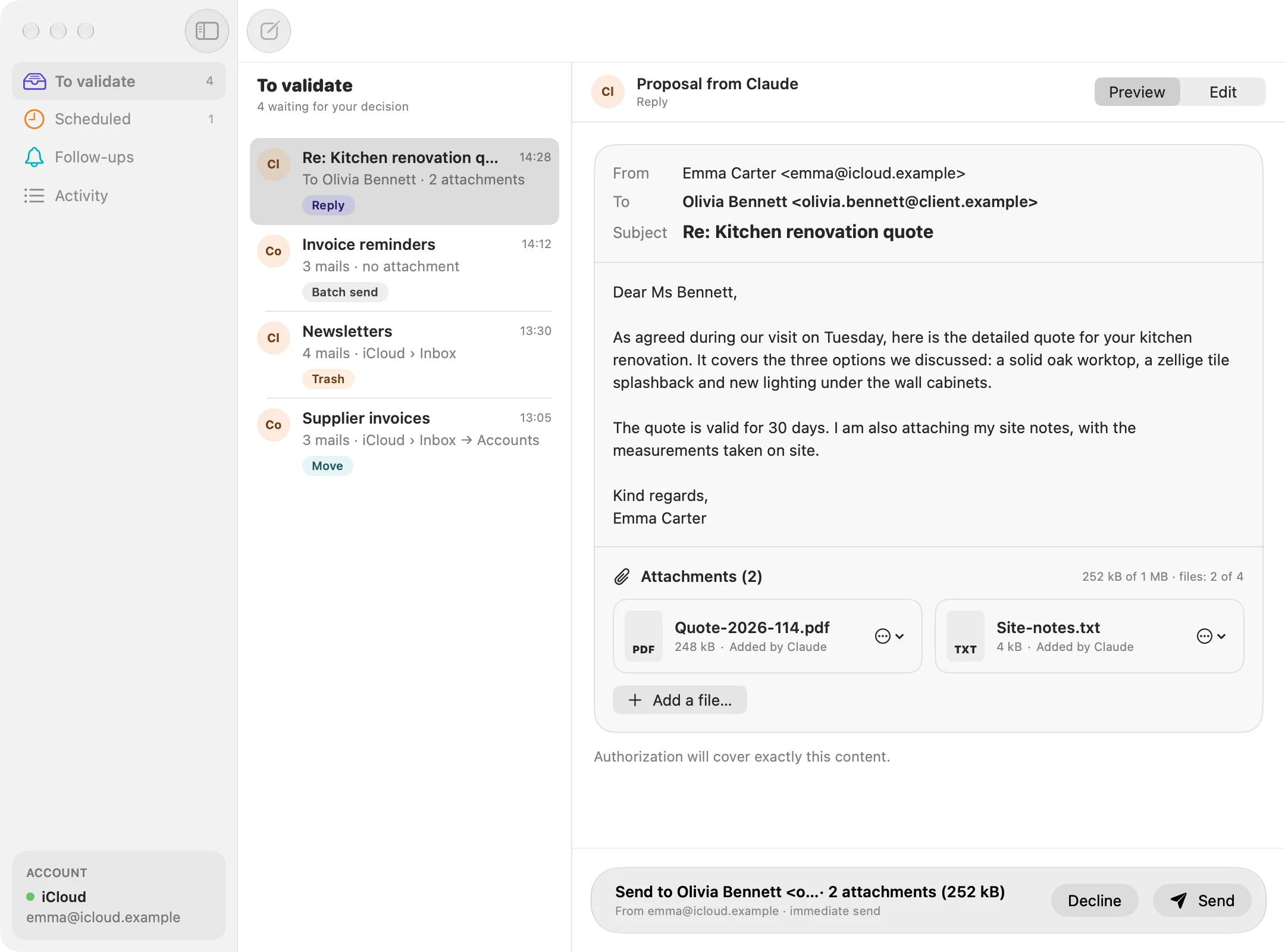
In accounts you allow, your agent can read email, find an older message by subject or sender and extract text from a supported attachment.
Your agent can attach files from a folder you allow. Set a custom signature for each account. Maivy shows it alongside the attachments in the preview before you send.
Once Maivy sends an email prepared by your agent, the agent can set a reminder. Maivy notifies you on your Mac if there is no reply.
Every proposal waits for your decision in Maivy.
Connect your agent on your Mac via MCP. Its proposals appear under To validate.
Check the sending account, recipients, text and attachments. Edit the email if needed.
Confirm with Touch ID or your Mac password. If the content changes during confirmation, Maivy asks you to approve it again.
Maivy shows which emails are involved in a batch send or move.
Your agent can prepare a batch of 2 to 10 emails. Review and edit each message before approving the batch.
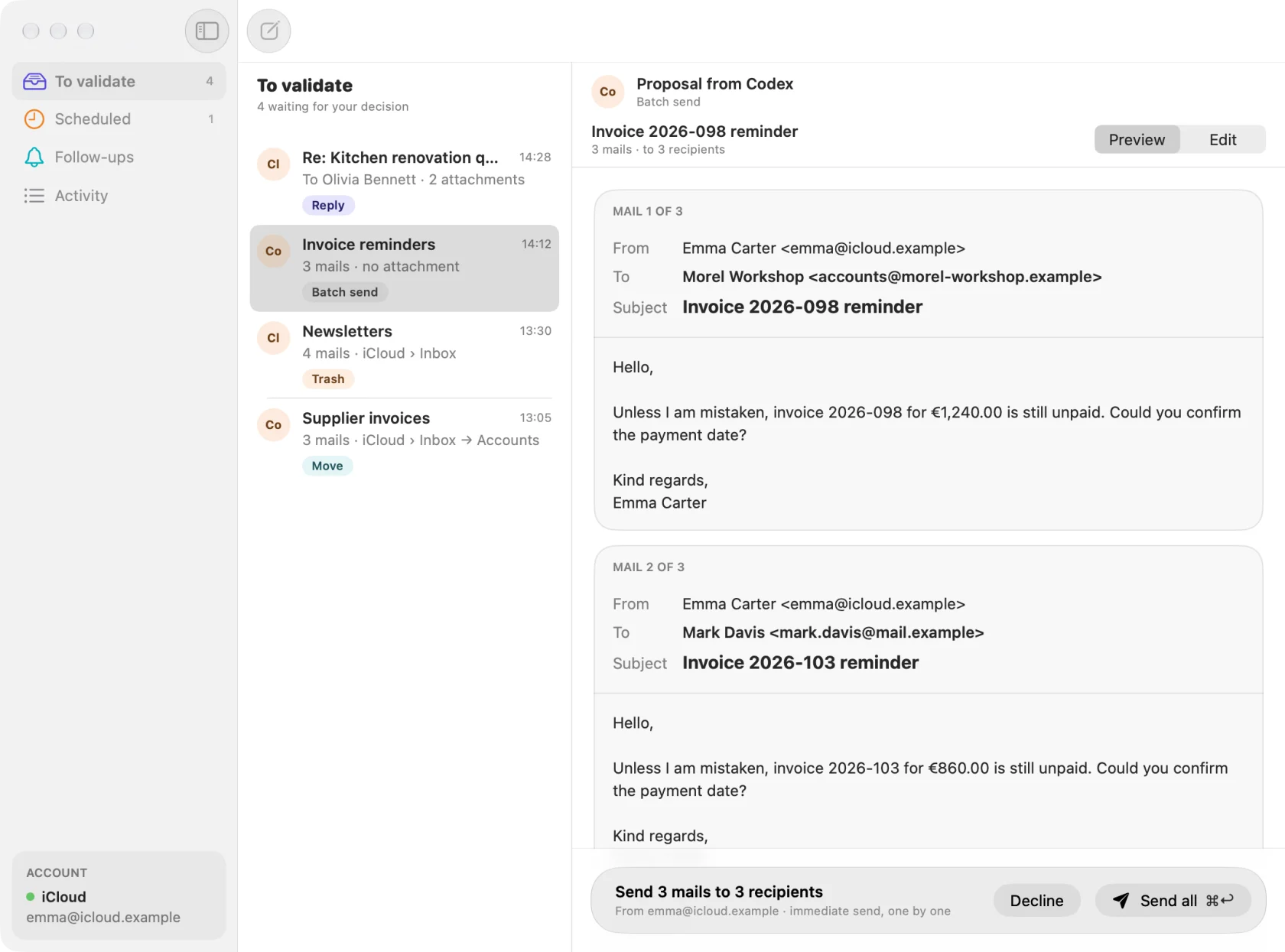
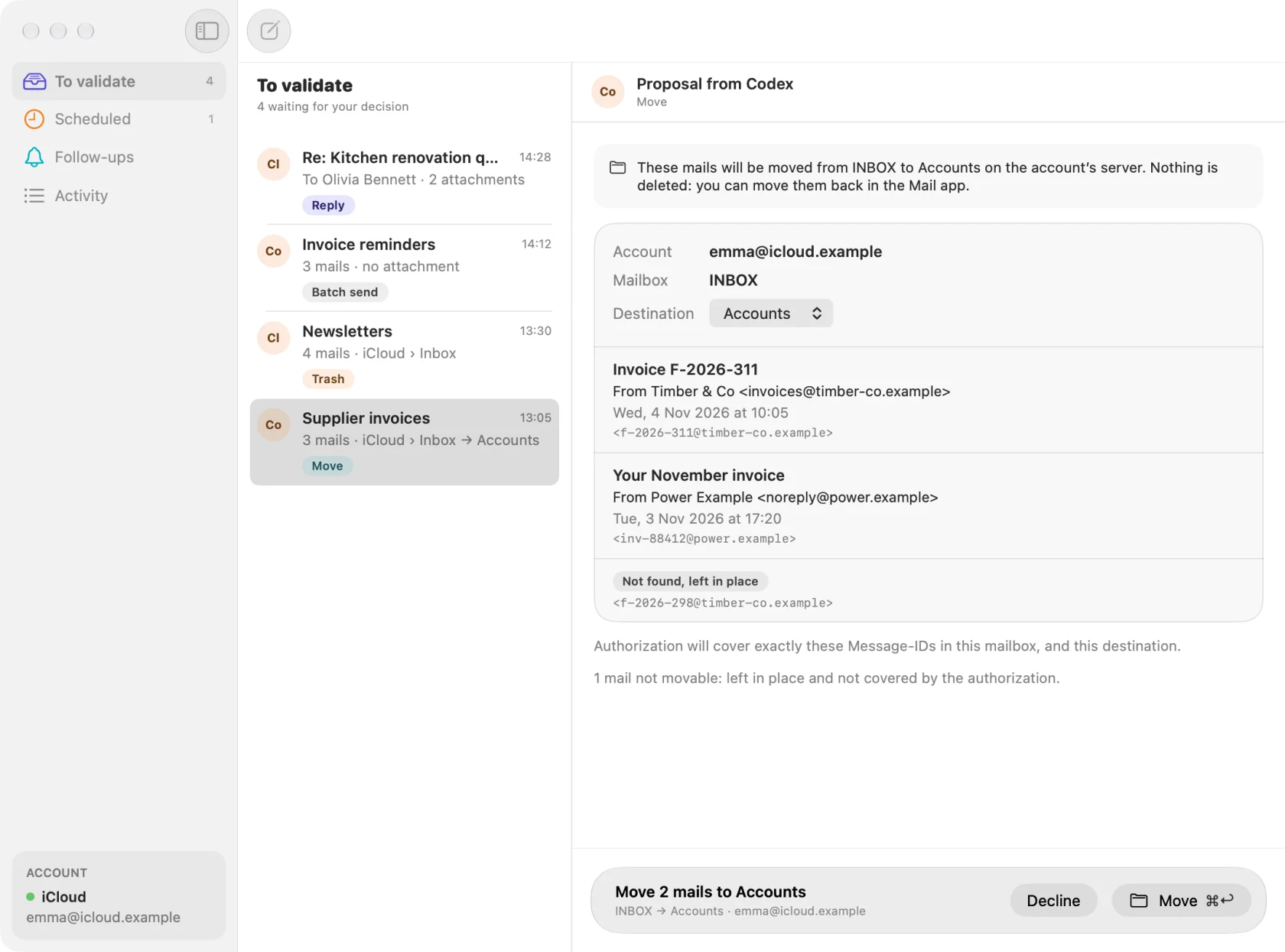
Review the emails before moving them to a folder or the Trash. Maivy flags messages it could not find and leaves them untouched.
A Mac with macOS 26 or later. A mail account with one of these:
An AI agent that runs on your Mac and supports MCP. You can also use Maivy without an agent, with New Mail. Not supported: Proton Mail (it needs Proton Mail Bridge), and servers without an encrypted connection. The app is available in English, French, German, Spanish, Dutch, Japanese and Simplified Chinese.
No. Maivy connects to your own mail provider with your own account, and mail content never reaches Appro. When you buy a licence, Paddle gives Appro your email address and your order reference, so that your key can be sent. The app has no analytics. The privacy policy has the details.
Any agent that runs on your Mac and supports MCP (Model Context Protocol). Settings › Agents shows the address and the token to give it, and a ready command for Claude Code. Agents reach Maivy only from your Mac.
Whatever your agent reads. If you turn reading on for an account, the agent receives what it asks for from that account (senders, recipients, subjects, dates, mail text, links, attachment names and attachment text) and can send it to its AI provider. Maivy does not control what the agent or that provider does with it. Read their privacy notices before you turn reading on.
Appro distributes Maivy itself, as a download from appro-app.com. The licence is bought on this site, not through the App Store.
A licence activated on a Mac keeps working offline, with no end date; only the activation needs a connection. Sending, moving and reading mail need a connection to your mail provider. A scheduled mail is sent within 15 minutes after its time; if your Mac is asleep or off during that whole window, it is not sent and shows as Expired.
A licence covers one person, on up to 3 Macs. To change Mac, choose Remove Licence from This Mac… in Settings › Accounts on the old one. For a Mac you no longer have, write to support.
Yes, with an app password: turn on 2-Step Verification in your Google Account, then create an app password for Maivy. Sign in with Google comes in an update, once Google has finished its review of Maivy.
Paid once. No subscription, no renewal. Prices include VAT.
0 €
9.99 €
29 €
In Maivy 1.x both licences unlock the same thing. The difference starts with Maivy 2.0. Not available yet.